Are you looking for Best wifi router for large homes?
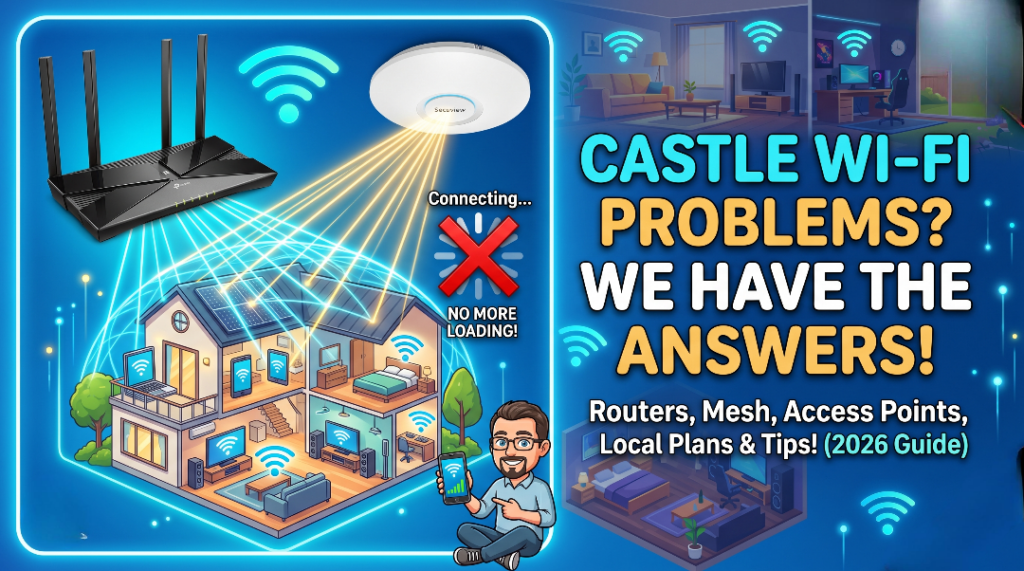
Hey there! So, you’ve got a castle or looking for Best wifi Router (or at least a house that feels like one when the Wi-Fi drops out in the kitchen), and you’re tired of seeing that dreaded “Connecting…” spinning wheel of doom. I get it. We live in 2026; your fridge probably has a Twitter account, and your thermostat shouldn’t be “offline” just because there’s a hallway between it and the router.
As someone who spends more time looking at signal frequencies than my own family, I’ve put together this guide to help you conquer those dead zones. Let’s get your home network up to speed.
-
The Best WiFi Routers for Large Homes
When you have a lot of square footage, a standard “off-the-shelf” router usually won’t cut it unless you enjoy sitting right next to the wall it’s plugged into. Here are the top picks for 2026:
The “I Want It All” Pick: Secuview 11ac 1200Mbps (Wide Range )
This is currently the gold standard for most big houses. It’s a Dual-Band router, meaning it has a 5GHz “fast lane” that’s less crowded than the usual 2.4GHz band. It’s fast, reliable, and handles a house full of smart devices without breaking a sweat.
check on Instagram also – Secuview 11ac 1200Mbps
The “Bang for Your Buck”: Secuview 2.4 Ghz 300Mbps
If you want solid Wi-Fi performance without spending a month’s rent, this is your guy. It doesn’t have the fancy 5GHz band, but for most homes, it provides great range and stability.
- Pro Tips to Boost Your Signal (For Free!)
Before you go out and drop cash on new gear, try these “expert” tricks:
- The “Chest-High” Rule: Don’t hide your router in a cabinet or on the floor. Signals travel better when the router is at chest height or higher and in a central location.
- Avoid the Kitchen: Microwaves and refrigerators are the natural enemies of Wi-Fi. Metal reflects the signal, and microwaves literally operate on the same frequency (2.4GHz) as your Wi-Fi.
- Angle the Antennas: If your router has antennas, point one vertically and one horizontally. This ensures the signal is broadcasting in all directions.
- Update Your Firmware: It sounds boring, but manufacturers release updates that fix bugs and improve signal stability. Check your router’s app every few months.
3. Professional Grade: Secuview Access Points
If you want a network that “just works” and can handle dozens of devices at once, these two options are the way to go. They are particularly great because they support PoE (Power over Ethernet), meaning one cable provides both power and data—no need for a power outlet near the ceiling.
The Reliable All-Rounder: Secuview AX1800 WiFi6
This is the “sweet spot” for most users. It uses Wi-Fi 6 technology to give you a massive boost over older hardware.
- Best for: Standard households, small offices, or cafes.
- The Tech: It delivers speeds up to 1.8 Gbps. While that’s faster than most internet plans, the real benefit is how it handles multiple phones and laptops simultaneously without dropping the connection.
- Vibe: Think of this as the reliable workhorse. It’s discreet, stays cool, and blankets a large area effortlessly.
The High-Performance Hub: Secuview AX3000 High Performance
If you have a high-speed fiber connection (like a 1Gbps plan) and a family that’s constantly streaming 4K video or on video calls, this is the upgrade you want.
- Best for: Tech-heavy homes, large villas, or multi-floor spaces.
- The Tech: It pushes the throughput up to 3.0 Gbps. It features a wider bandwidth (160MHz channel), which is basically like adding three extra lanes to a crowded highway.
- The Edge: It’s better at “penetrating” through minor obstacles and maintaining top-tier speeds even when you’re a few rooms away from the unit.
- The Physical Connection
Before we touch any software, we need the plumbing right.
- The WAN Port: Take the Ethernet cable coming from your ISP’s modem (the box the internet company gave you) and plug it into the WAN or Internet port on your router. It’s usually a different color than the others.
- Power Up: Plug it in and give it about 2–3 minutes. The lights will dance around for a bit while it wakes up.
- Connect Your Device: You can do this via another Ethernet cable to your laptop (recommended for stability) or by joining the default Wi-Fi network listed on the sticker at the bottom of the router.
- Accessing the “Brain” (The Admin Panel)
Now you need to tell the router how to behave.
- Find the IP: Open a web browser (Chrome, Safari, etc.) and type in the router’s IP address. Common ones are 192.168.100.1 or 6.6.6.6.
- Tip: Check that sticker on the bottom again; it usually tells you exactly what to type (e.g., 192.168.1.1).
- Login: It will ask for a username and password. If it’s brand new, it’s often admin / admin or admin / password.
- The Setup Wizard (The Easy Way)
Most modern routers will automatically launch a “Quick Setup” or “Wizard” the first time you log in.
- Connection Type: Most home connections use Dynamic IP (DHCP). Just select that and hit next.
- PPPoE: If you are in a region where your ISP gave you a specific username and password to “sign in” to the internet, select PPPoE and enter those credentials.
- Personalize Your Wi-Fi: This is the fun part. Change the SSID (the Wi-Fi name) to something you like and set a strong Password.