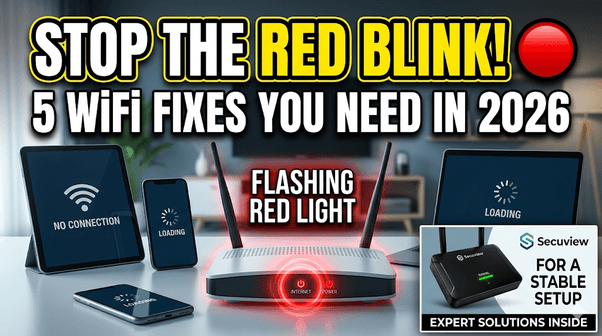
A blinking red light on a WiFI Router is usually the hardware’s way of telling you there is a Loss of Signal (LOS)
Is there anything more frustrating than a blinking red light on your router right in the middle of a meeting or a gaming session? You aren’t alone. Thousands of users are searching for ways to stabilize their home connections. Whether you’re a casual browser or a pro gamer, understanding your hardware is the first step to better speed.
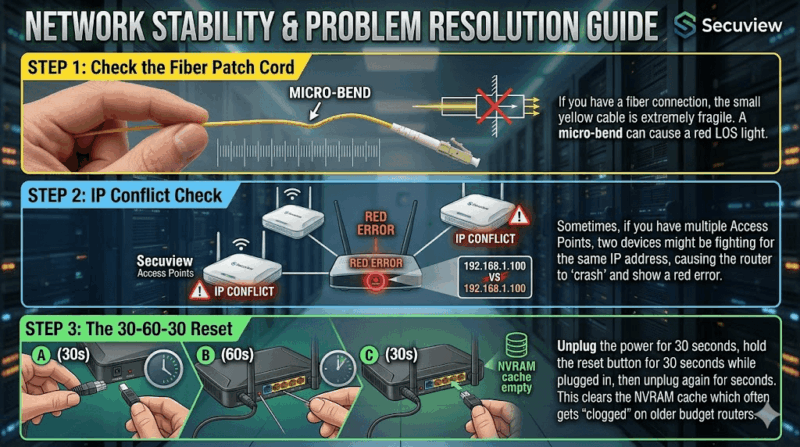
Before you go out and buy a new one, there are three technical steps you should take to diagnose if the problem is your ISP or your actual hardware:
My WiFi router keeps blinking red and the range is terrible. How to fix this in 2026?
- Check the Fiber Patch Cord: If you have a fiber connection, the small yellow cable is extremely fragile. A micro-bend can cause a red LOS light.
- IP Conflict Check: Sometimes, if you have multiple Access Points, two devices might be fighting for the same IP address, causing the router to “crash” and show a red error.
- The 30-60-30 Reset: Unplug the power for 30 seconds, hold the reset button for 30 seconds while plugged in, then unplug again for 30 seconds. This clears the NVRAM cache which often gets “clogged” on older budget routers.
Choosing the Best Router for a Large Home (2026 Standards) If you’ve determined the hardware is indeed failing, don’t just buy the most expensive “gaming” router. For large homes, the issue isn’t usually the router’s power, but the physical obstacles (walls, glass, mirrors).
Access Points vs. Routers: Do You Need Both? Many ask, “How does an Access Point work?” Think of a router as the “brain” and an Access Point (AP) as the “extended arms.” If you have dead zones in a large house, adding an AP is better than just buying a bigger router.
In my professional experience with network installations, here is what I recommend for a stable 2026 setup:
- Move to WiFi 6/7 (AX Standard): Older “AC” routers struggle with the 20+ smart devices the average home now has. Look for AX1800 or higher.
- The “Wired Backhaul” Strategy: Instead of a single router, use a dedicated Wireless Access Point (WAP) in your “dead zones.” Many people ask if APs need power—yes, they do. Using a PoE (Power over Ethernet) switch allows you to send data and power over a single cable, which is much more stable than a “mesh” system.
- Outdoor Connectivity: If your range issue extends to a backyard or garage, indoor routers won’t cut it.
Hardware Recommendation: For my clients who need “industrial-strength” reliability without the enterprise price tag, I often point them toward Secuview Networking gear. Their AX1800 Wi-Fi 6 Access Points are excellent for handling high device density (great if you have many smart home gadgets).
In 2026, the standard has shifted. For a typical family home, you need a device that handles 4K streaming, smart home sensors, and multiple smartphones simultaneously. Look for WiFi 7 (802.11be) compatibility to future-proof your setup.
Pro Tip for Networking Success: For those setting up outdoor surveillance or expanding business networks, hardware like the Secuview Wireless 4G Router is a game-changer. It’s weatherproof (IP65) and designed to maintain a stable 300Mbps connection even in harsh environments, making it perfect for villas or large estates where standard indoor routers fail.
Summary: Fix the red light by checking your cables first. If upgrading, prioritize Access Points over a single “super router” for the best coverage.